Exploring your discourse graph
Opening the discourse context
The discourse context view is your main tool for exploring relationships between nodes in your graph. There are several ways to open it:
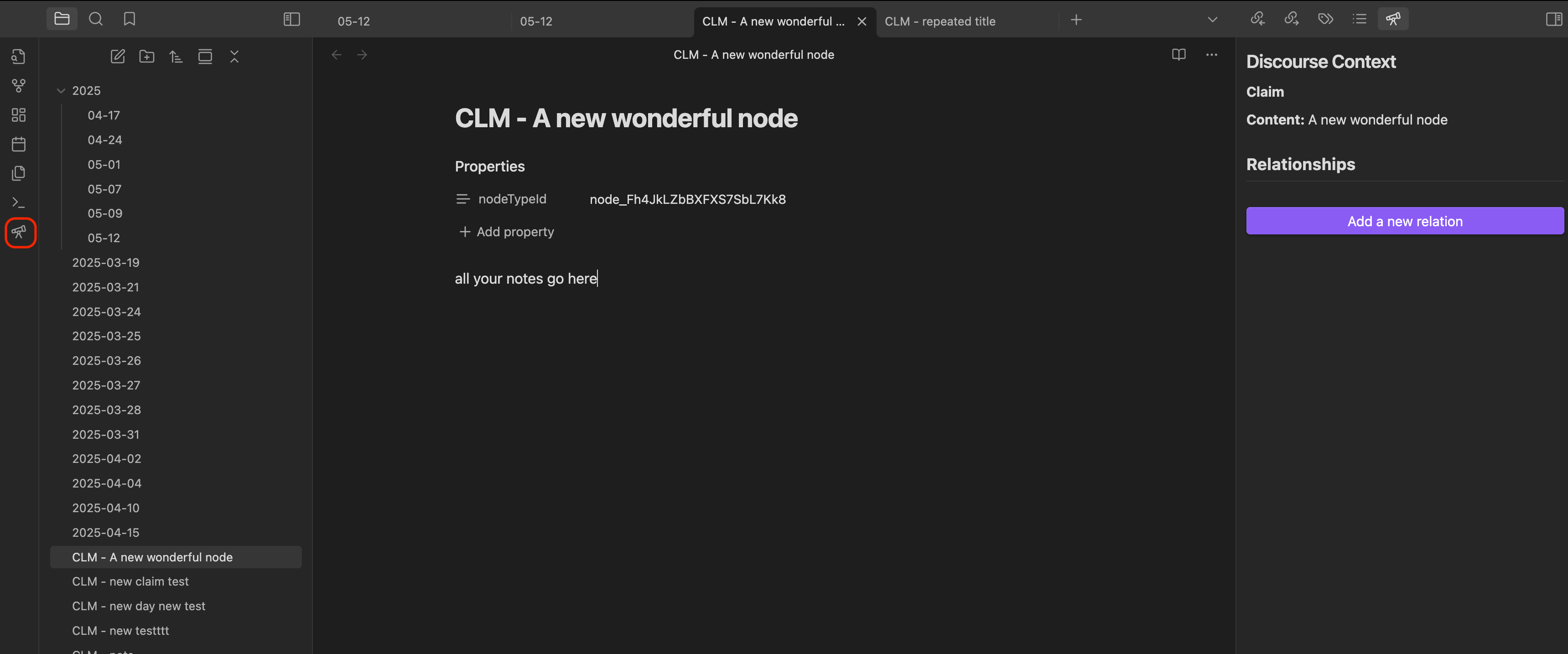
Method 1: Using the sidebar icon
Click the telescope icon on the left sidebar to toggle the discourse context view.
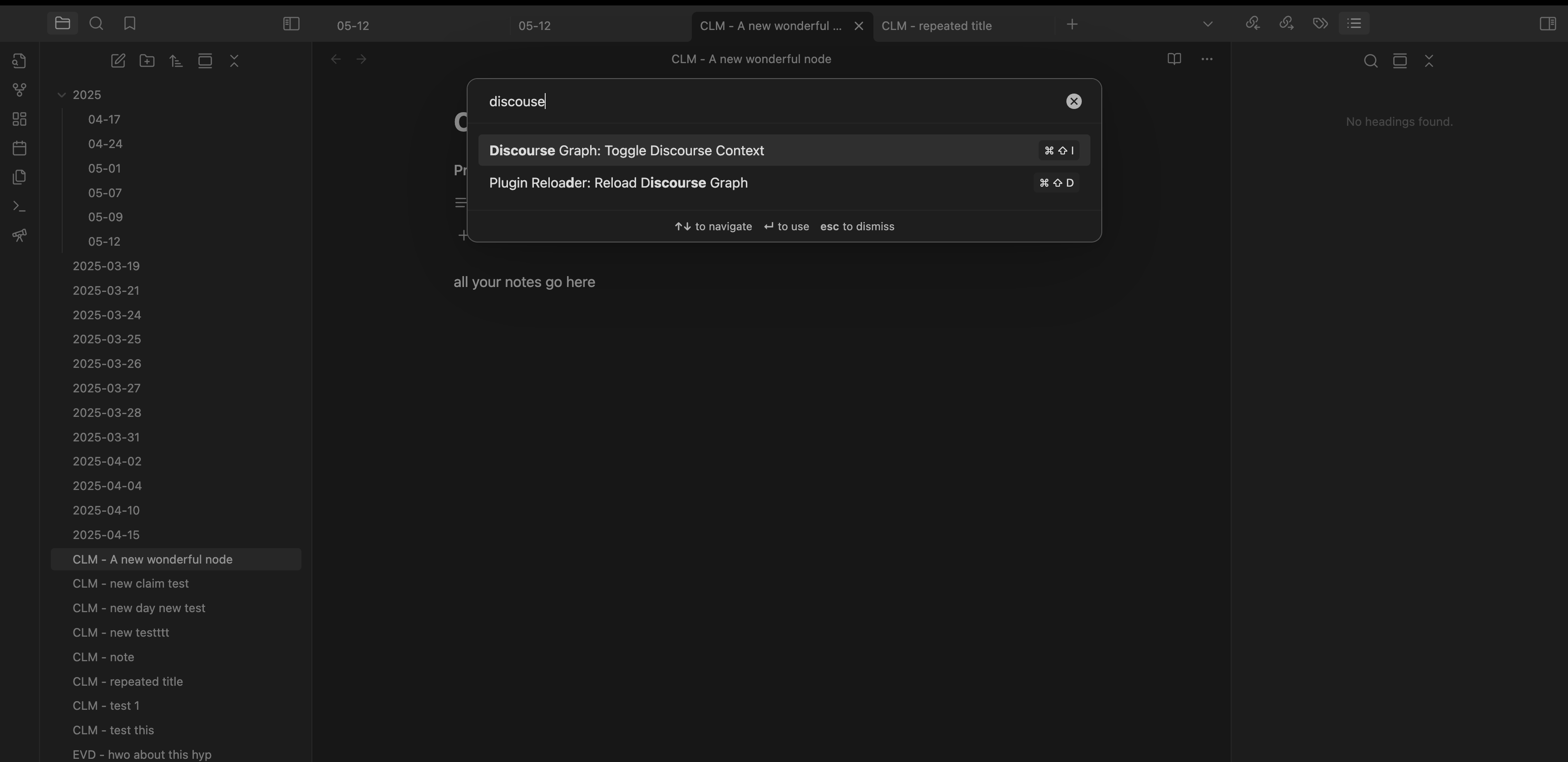
Method 2: Using the command palette
- Open the Command Palette (
Cmd/Ctrl + P) - Search for “discourse context”
Method 3: Using hotkeys
You can configure a custom hotkey in the Obsidian settings to quickly toggle the discourse context view.
- Configure a custom hotkey in settings
Method 4: Using the discourse context overlay
Links to a discourse node show a small badge with the number of relations that node has. Select the badge to open its discourse context in place, without leaving the note you are reading.
The badge appears in both Live Preview and Reading view, on every link to a discourse node. A node with no relations yet shows a badge reading 0, and opening it says “No discourse relation found” alongside the option to add one. You can turn the badge off in General settings.
Using the discourse context
The discourse context view shows you:
- All relationships the current node has with other nodes
- Types of relationships (supports, contradicts, etc.)
- Quick access to related nodes
- Tools for creating new relationships
You can use this view to:
- Navigate between related nodes
- Understand how nodes connect to each other
- Add new relationships
- Get a quick overview of your graph structure
The overlay badge opens the same relationships in a popover, so it shows exactly what the sidebar view would show for that node. Relations that are still waiting to be accepted after an import are not counted in the badge; open the discourse context view to review those.